
Options and document copy
Options
The gear icon, at the top right of the save page, opens the options. Each option is saved as soon as you change it. Click "Back" to return to the save page.
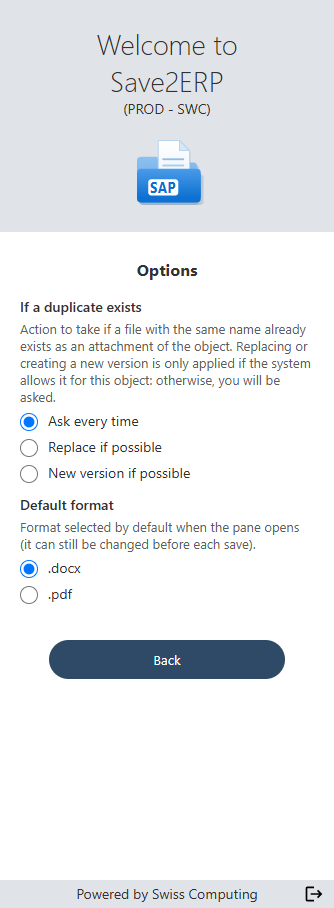
| Option | Effect |
|---|---|
| If a duplicate exists | What to do if a file with the same name already exists in the object: "Ask every time" (default, the Duplicate detected page is shown), "Replace if possible" or "New version if possible". The file is only replaced, or a new version created, if the target system allows it for the object: otherwise, you are asked. A reminder "(auto-replace enabled)" or "(auto new version enabled)" is then shown below the file name. |
| Default format | .docx (default) or .pdf: format suggested each time the pane opens. You can always choose the other format before sending. |
Options are stored on your computer, for all your documents. They may be lost if Word's browsing data is cleared: simply choose them again.
Open a copy of the document
The "Open a copy" button opens a full copy of the document in a new Word window: the content, layout and information linked to the target system are kept. This is useful to prepare a variant of the document (a second version of a quote, for example) and attach it to the same object.
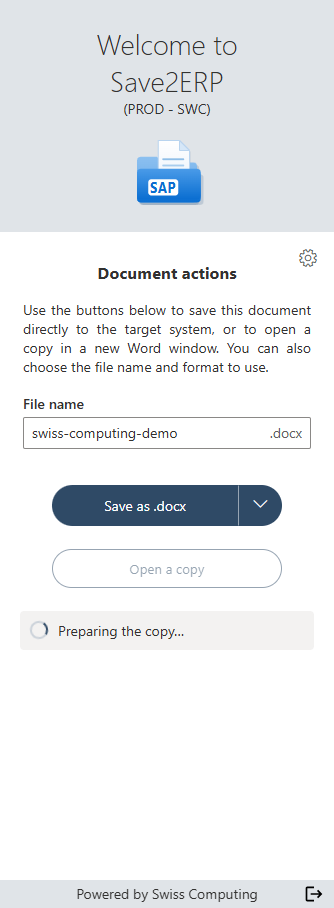
In the copy, open the Save2ERP pane as usual. The suggested name is the one provided by the target system: remember to change it so that you do not replace the original.
The button is not shown?
Your version of Word does not support this feature: ask your IT department to update it.