
Choosing the name and format
File name
The File name field is filled in automatically:
- with the name suggested by the target system when the document was generated;
- otherwise, with the name of the document, if it has already been saved;
- otherwise, it is empty: enter a name.
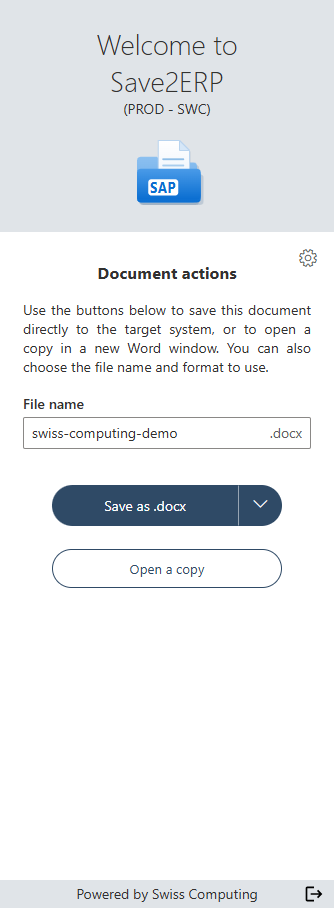
The name suggested by the target system takes priority. If you downloaded the same template several times, Word may have added a number to the file name (for example "Letter (3).docx"), which is not always wanted.
You can always change the name. Enter it without an extension: the extension (.docx or .pdf) is shown to the right of the field and depends on the chosen format. Characters that are not allowed in a Windows file name (\ / : * ? " < > |) are automatically replaced with _.
Name too long for the field
Hover over the field: a tooltip shows the full name that will be saved, including the extension.
Format: Word or PDF
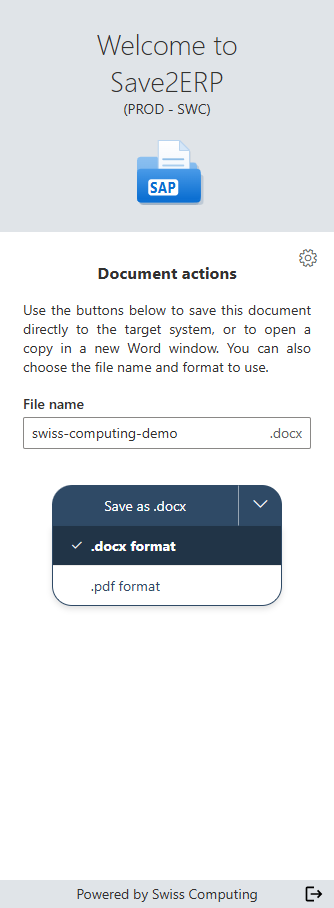
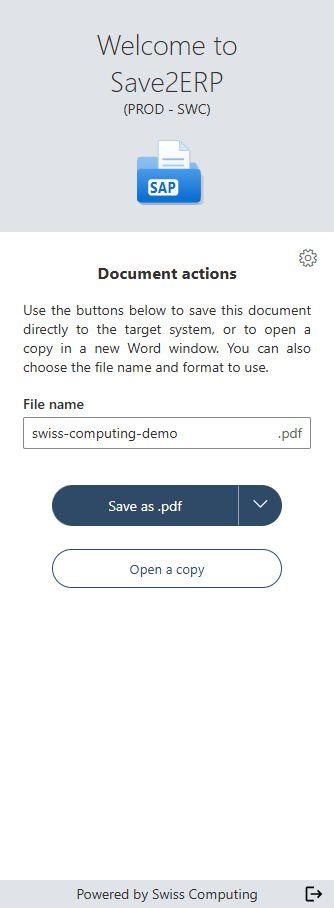
The label of the save button shows the format that will be sent. To change it, click the arrow to the right of the button, then choose ".docx format" or ".pdf format". This choice does not start the upload: then click the button to save.
| Format | Result |
|---|---|
| .docx format (Word) | The document is saved as is, and can still be edited. |
| .pdf format (Adobe PDF) | Word creates a PDF file from the current document: the target system receives a version that cannot be edited. |
Word and PDF are two different files
A .docx file and a .pdf file with the same name are two separate files in the target system: sending the PDF does not replace the Word version already saved, and vice versa.
The format suggested when the pane opens is .docx, unless you chose PDF as the default format in the options.